Adding your GERP ODOO and signing in
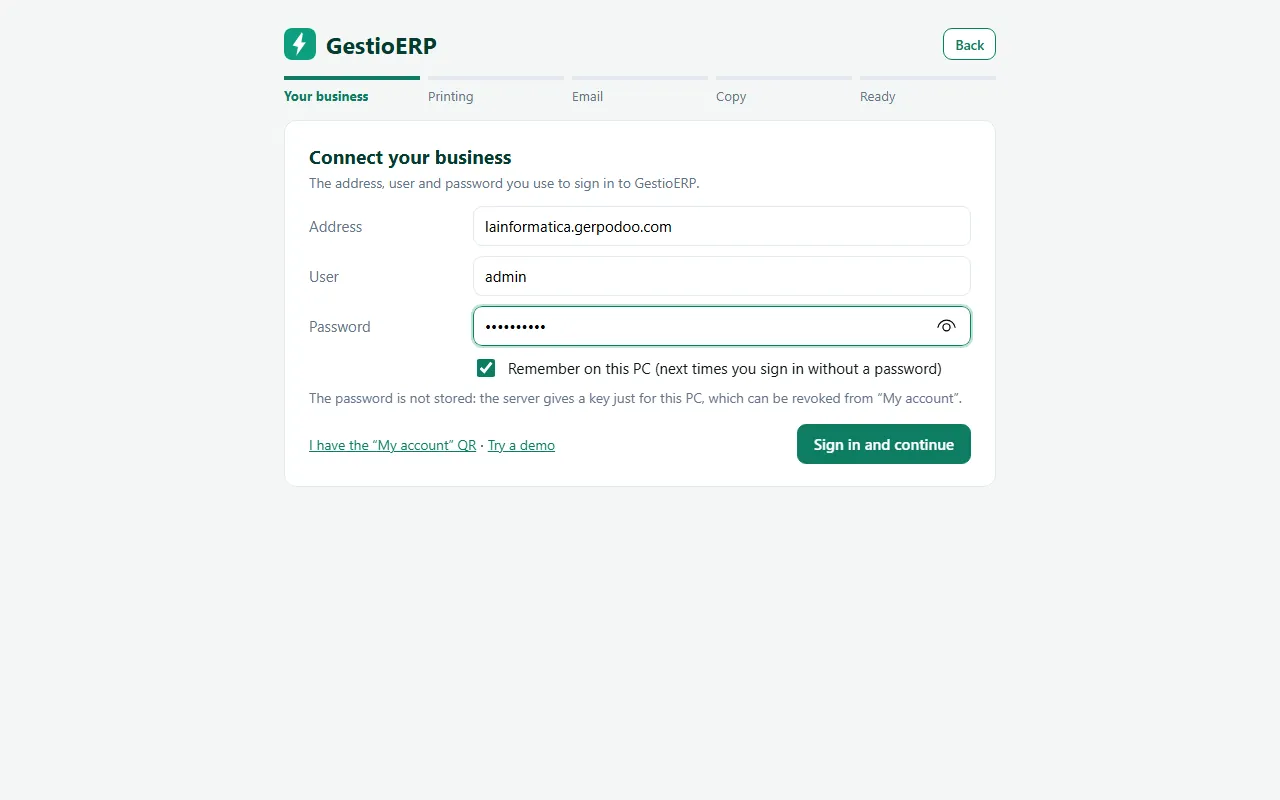
The first time, the «Connect your business» wizard opens. Type your GERP ODOO address (for example yourcompany.gerpodoo.com), your Odoo user and password: the application sees it is a GERP ODOO, signs in and keeps the session on this PC, so next time you are already in. If your user has two-step verification, it asks for the code. To add another business later, press «+ Add business» on the home screen».

▶ In motion: adding your GERP ODOO and signing in, point by point.
- 1The wizard steps. With GERP ODOO they are Your business, Printing, Email, Backup and Done.
- 2Your GERP ODOO address, with or without https:// (it can also be pasted with /odoo at the end).
- 3The user and password you use to sign in to Odoo. The password is not stored: the session is.
- 4Signs in and continues with the wizard.
- 5No account yet: the GERP ODOO demos (La Informática, Olis Vallseca and Bar Rincón).
How it is done
- Open GestioERP for Windows: the first time the wizard shows up (later, «+ Add business» on the home screen).
- Type your GERP ODOO address, your user and your password and press «Sign in and continue».
- If it asks for the verification code, type it.
- Continue with Printing, Email and Backup: each step can be skipped and done later in Settings.
- In «Done» choose what to open: GERP ODOO, the POS or the home screen.
Rating
There are no comments for now.
to be the first to leave a comment.