The POS receipt printer
How each device connects to the GERP ODOO POS: the receipt printer, the kitchen and bar printers per zone, the cash drawer, the scale, the customer display, the kitchen and pick-up screens, the barcode scanner, the tablet or handheld with the GERP ODOO POS app and what is printed when there is no internet.
Video course with Ximena and Marc
Press «Empezar» (Start) and turn the volume up: they show you with voice-over and subtitles (in Spanish), in about 3 minutes.
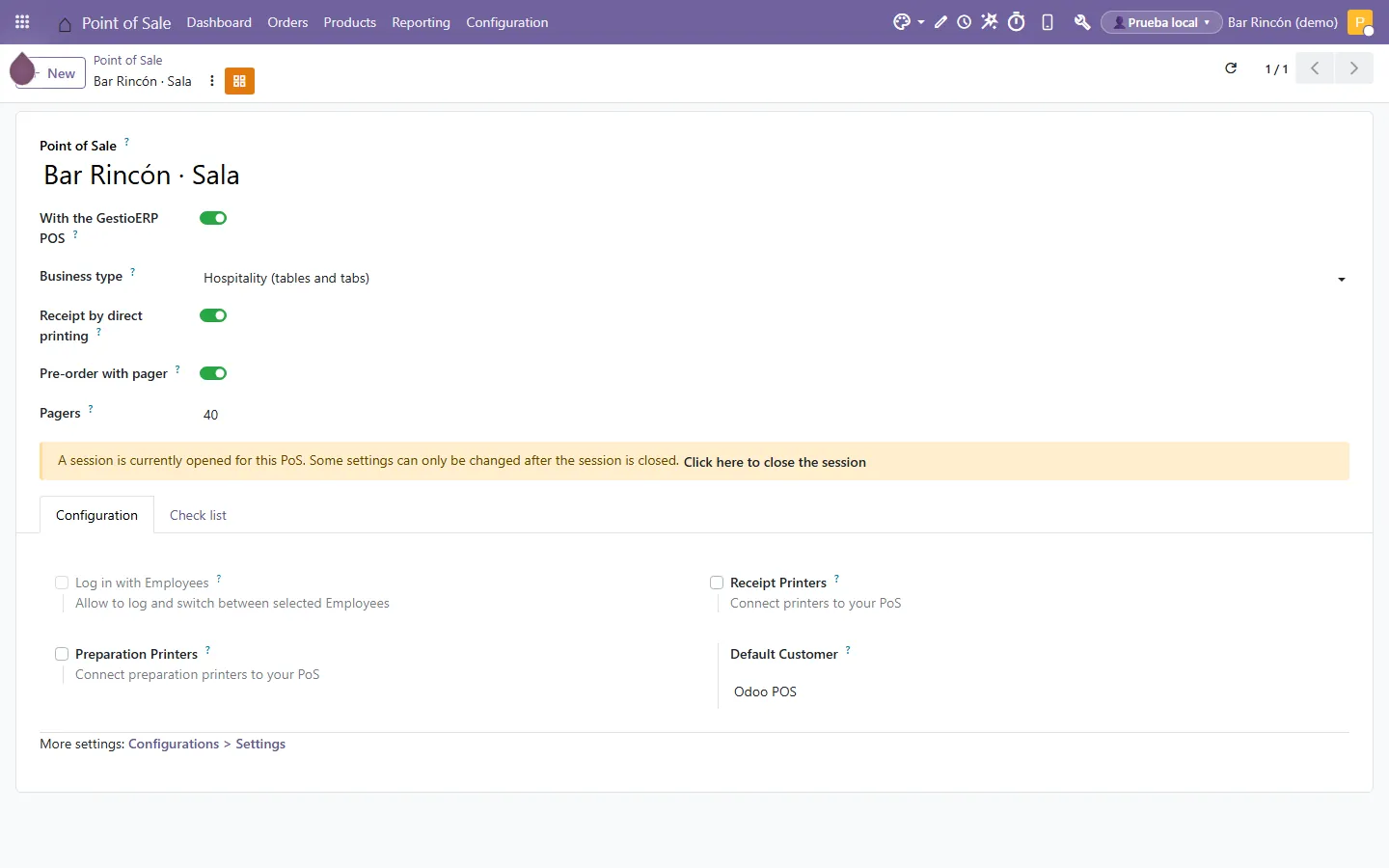
Open full screenThe GERP ODOO POS does not print from the browser and does not use Odoo's IoT Box or ePOS printers: it sends the receipt to the Direct printing queue with the «Ticket del TPV» action (key ticket-tpv) and the GestioERP for Windows bridge on the computer with the printer prints it. It does not matter where you charge from (the PC, the tablet or the handheld): the receipt comes out on the till's thermal printer. When charging, it prints on its own if the till has «Receipt by direct printing» ticked; «Print ticket» and «Gift receipt» print it again, and the X and Z reports go to the same printer. Without Direct printing or without a printer, the receipt opens as a PDF.

▶ In motion: the POS receipt printer, point by point.
- 1The receipt printer, added on its computer with the «Ticket 80 mm» paper: the PDF comes out at its size.
- 2The «Ticket del TPV» action says which printer gets the receipts, the drawer and the X and Z reports.
- 3On each till: whether the receipt prints on its own when charging and whether the drawer opens on cash payments.
- 4When charging, the receipt goes into the queue and the till computer's bridge prints it, with no dialog.
How it is done
- Install the receipt printer in the till computer's Windows, with GestioERP for Windows, and link it (Settings › Print bridge › «Register this PC»).
- In GERP ODOO, Documents › Direct printing › Printers › New: choose that computer, copy the exact printer name into «Name in Windows» (it is on the computer's form) and set the paper to «Ticket 80 mm».
- Save and press «Print a test».
- In Printer per action, on the «Ticket del TPV» (ticket-tpv) row, choose that printer. Otherwise the receipt goes to the default one, which is usually the A4.
- On the till form (Hospitality and POS › Configuration › POS registers, or the Odoo Point of Sale till), leave «Receipt by direct printing» ticked».
- Charge a test receipt and check in Print jobs that it is «Printed».
There are no comments for now.
to be the first to leave a comment.