Linking the computer as a print bridge
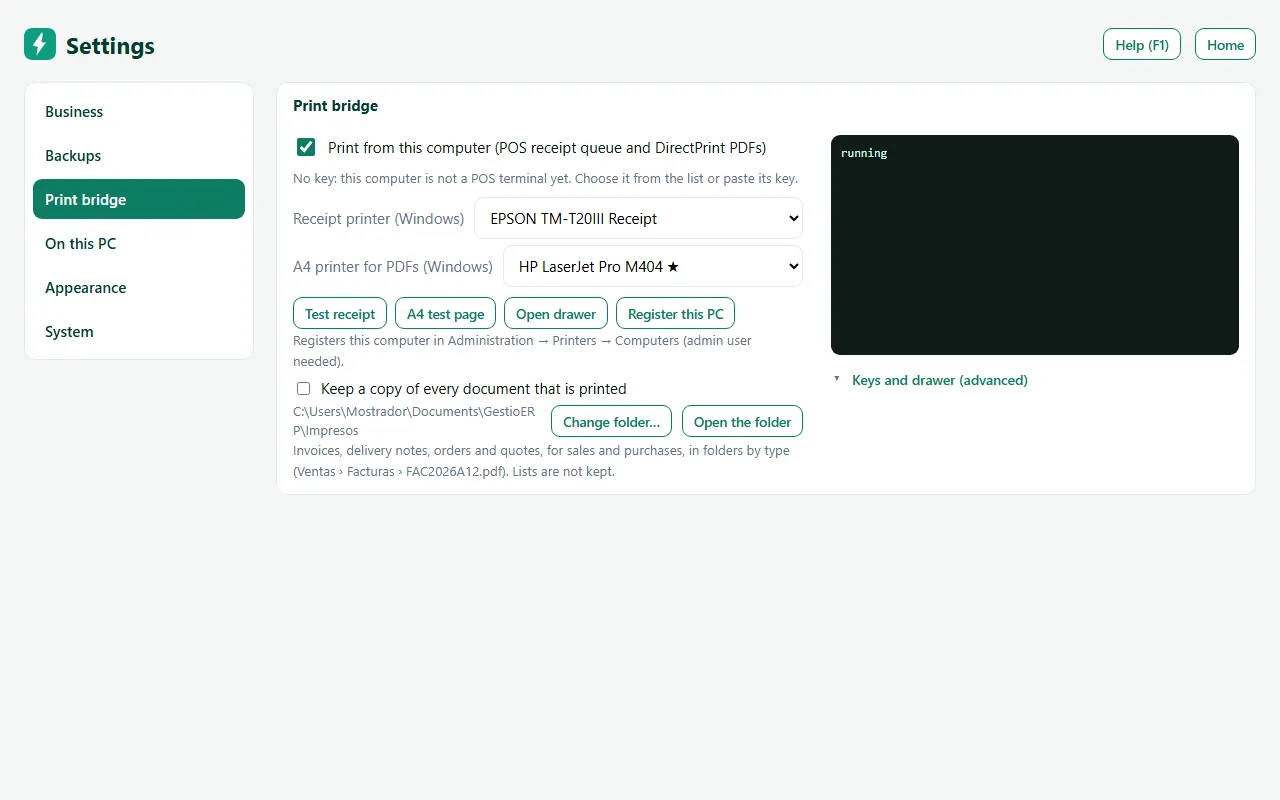
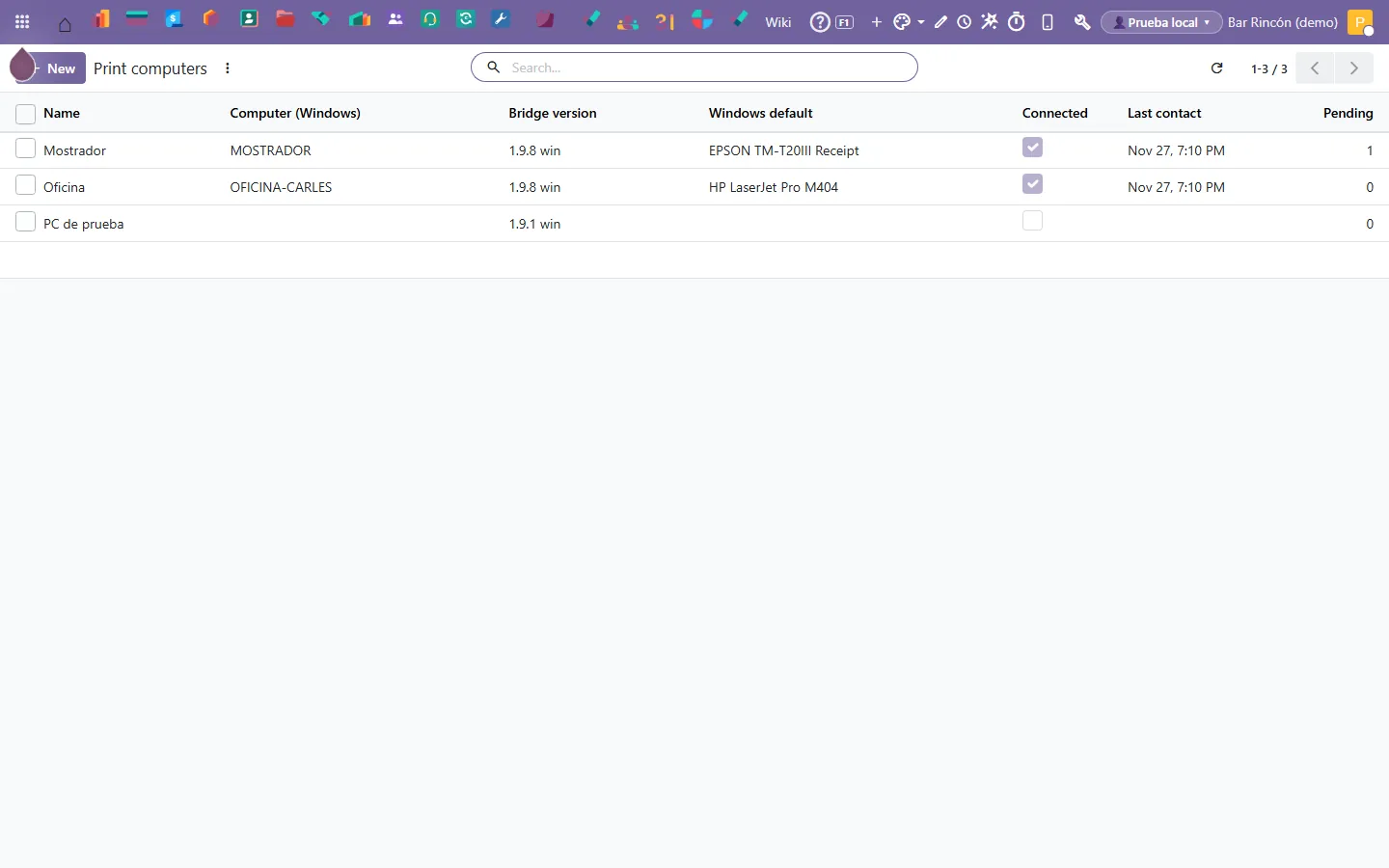
For GERP ODOO to print on this PC's printers, the computer has to be registered in Documents › Direct printing › Computers. Each computer has its key: with it the bridge asks GERP ODOO every few seconds whether there is anything to print, without opening ports. The easiest way is to let the application do it: as an administrator, the wizard or Settings › Print bridge › «Register this PC» registers it with the computer name and its A4 printer. It can also be done by hand: create the computer in GERP ODOO, copy its «Computer key» and paste it into the application.

▶ In motion: linking the computer as a print bridge, point by point.
- 1Turns the bridge on in this PC: it picks up and prints what GERP ODOO sends it.
- 2This PC's A4 printer: it is the one registered in GERP ODOO when the PC is registered.
- 3A test sheet straight to that printer, without going through GERP ODOO.
- 4The computer key in Direct printing: «Register this PC» fills it in, or it is pasted by hand.
- 5Registers this PC in Documents › Direct printing › Computers (you need to be an administrator).
- 6A copy in folders (Sales › Invoices…) of every invoice, delivery note, order and quote printed.
How it is done
- In GestioERP for Windows, open Settings › Print bridge and leave «Print from this computer» ticked».
- Choose the «A4 printer for PDFs (Windows)» and press «Register this PC» (you need to be a GERP ODOO administrator).
- In GERP ODOO, open Documents › Direct printing › Computers: the PC shows with the computer name, «Connected» and the time of the last contact.
- Give it a clear name («Counter», «Office») and look at «Windows printers» for the exact names it has reported.
- By hand: in Computers press New and save, copy the «Computer key» and paste it into Settings › Print bridge › «Computer key (DirectPrint)».
- If «Change the key» is pressed, the bridge stops getting in until the new one is pasted or it is registered again.
Rating
There are no comments for now.
to be the first to leave a comment.