Spreadsheets
Online spreadsheets inside Odoo, with formulas, charts, pivot tables and live data from your company (Odoo lists and pivot tables, accounting functions, global filters). They can be uploaded and downloaded as Excel, and shared with collaborators (who edit) and readers (who can only view).
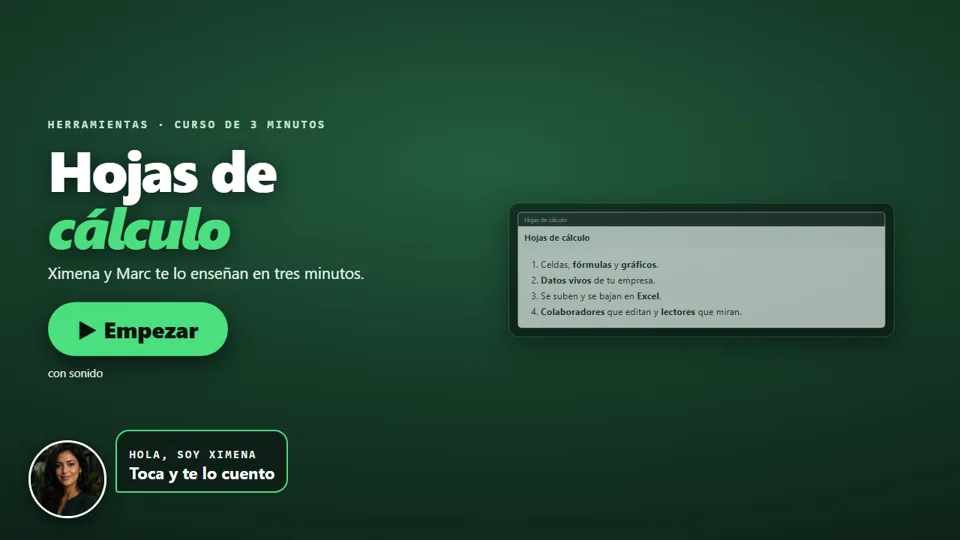
Video course with Ximena and Marc
They show you with voice-over and subtitles (in Spanish), in about 3 minutes.
▶ Watch the video course1. What spreadsheets are
Online spreadsheets inside Odoo, like those in Excel or Google Sheets: cells, formulas, charts and pivot tables, plus live data from your own company (sales, accounting, stock…). Each internal user can create their own and share them with colleagues. They are in the «Misc» dropdown of the top menu.
How it is done
- Open «Miscellaneous › Spreadsheets».
- Press «New», give it a name and press «Edit».
- Type in the cells, use formulas and save: it saves by itself while you work.
2. The list of sheets
Your sheets and those others share with you, in cards or in a list, with a search box by name, label, owner and collaborator. On entering, by default, only yours are shown («My Sheets» filter, those you own); remove the filter to see also those shared with you.

▶ In motion: the list of sheets, point by point.
- 1Search box: by name, label, owner or collaborator; it also serves to remove the «My sheets» filter».
- 2«New» creates an empty sheet; «Upload a sheet» (in the list view) creates a sheet from one or several Excel files (.xlsx).
- 3Filter for my sheets, archived ones and a side panel of labels to find the sheet you want among many.
- 4Each sheet with its name and labels; one click opens it in the record.
- 5In the list view, the «Edit» button of each row opens the sheet editor directly.
3. The record of a sheet: owner, collaborators and readers
Before editing, fill in the record. Who can write and who can only read is decided here, by people or by groups.

▶ In motion: the record of a sheet: owner, collaborators and readers, point by point.
- 1The name and the «Edit» button, which opens the sheet editor. When a sheet is archived it disappears from the list (it is seen with the archived filter).
- 2Owner: whoever creates it (you can change it). Company: if you fill it in, the sheet is only visible when that company is among the active ones.
- 3Labels to classify the sheets («Finance», «Quality»…); they are managed in «Misc › Spreadsheet labels».
- 4Collaborators: the people (or groups of users) who can modify the sheet besides the owner.
- 5Readers: the people (or groups) who can only view it, without changing anything.
- 6Below is the history: comments, notices and activities of the sheet, as in the rest of the Odoo records.
4. The editor: cells, formulas and format
The editor opens full screen and works like any online spreadsheet: type in the cells, format them and use the usual functions (SUM, AVERAGE, IF…, in your user's language). To see them all, menu «Insert › Function». Changes are saved automatically and, if two people edit at the same time, each sees the other's changes.

▶ In motion: the editor: cells, formulas and format, point by point.
- 1Editor menus: File, Edit, View, Insert, Format and Data. From «File» you can download the sheet as Excel.
- 2The toolbar formats the cells (bold, colors, borders, number or currency format) and activates filters.
- 3The formula bar shows and lets you type the formula of the selected cell; references (B2:B20) are filled in with the mouse.
- 4The grid of cells; charts and pivot tables can also be inserted over it.
- 5The side panel appears when you choose a list, a pivot table or a chart, to change its columns, filters and options.
- 6A sheet can have several tabs, like an Excel workbook.
5. Live data of your company in the sheet
What sets these sheets apart from an Excel file: they can bring in Odoo data and update themselves when you open them.

▶ In motion: live data of your company in the sheet, point by point.
- 1In any Odoo list (customers, invoices, products…), the gear in the search bar offers «Add to spreadsheet».
- 2Odoo asks which sheet: a new one or one of those you already have, and sometimes which row to start on.
- 3The list stays in the sheet with the columns and filters it had and is refreshed with the current data (ODOO.LIST functions).
- 4You can also insert pivot tables (ODOO.PIVOT) that group by rows and columns, with subtotals.
- 5In the «Data» menu, opening the list or table you change columns, order, filters and the fields of related models; only fields stored in the database are valid.
How it is done
- In an Odoo list, open the gear menu and choose «Add to spreadsheet».
- Choose the destination sheet.
- In the sheet, open the «Data» panel to adjust columns and filters.
6. Accounting formulas and global filters
With accounting installed there are dedicated functions to pull amounts from the accounts inside a formula. And the global filters (by date, company, etc.) make the whole sheet change at once.
How it is done
- ODOO.DEBIT(accounts; dates): total debit of those accounts in the period.
- ODOO.CREDIT(accounts; dates): total credit.
- ODOO.BALANCE(accounts; dates): balance (debit minus credit).
- ODOO.FISCALYEAR.START(day) and ODOO.FISCALYEAR.END(day): start and end of the fiscal year of a date.
- A global filter is added from the «Data» menu and affects all the lists, pivot tables and charts that use it.
7. Upload and download Excel files
You can bring an Excel file you already have into Odoo and export a sheet from Odoo to open it in Excel.
How it is done
- Upload: in the list of sheets (list view) press «Upload a sheet» and choose one or more .xlsx files; each one is converted into a sheet.
- Download: inside the editor, «File» menu, download the sheet as an Excel file.
- After uploading it, review formulas and formats: Odoo does not understand all of Excel's functions or formats.
8. Labels and settings
The labels are used to organize the sheets. They are managed in «Miscellaneous › Spreadsheet labels» or in Settings › General options › GERP ODOO › «Spreadsheets» › «Sheet labels».
9. Permissions
In Internal users: «Spreadsheets» gives the menu and the use of the sheets, and the «Spreadsheet labels» button lets you see and change the labels. On installing the module, existing users receive the permission. Odoo administrators manage all the sheets; the rest, their own and those shared with them.
Frequently asked questions
How do I create a spreadsheet?
Menu «Misc › Spreadsheets» › «New»: type a name and press «Edit» to open the editor. It saves itself.
How do I share a spreadsheet with someone?
In the sheet's form: «Contributors» (people or groups) can edit it and «Readers» can only view it. The owner can always change it.
How do I import an Excel file?
In «Misc › Spreadsheets», list view, press «Upload a Spreadsheet» and pick one or more .xlsx files. Each becomes a sheet; check formulas afterwards.
How do I download a sheet as Excel?
Open the sheet with «Edit» and, from the editor's «File» menu, download it as an Excel file.
How do I put Odoo data into a sheet?
In any Odoo list, cog menu › «Add to spreadsheet»: choose the sheet and the list stays with its filters and refreshes with current data.
How do I make a pivot table?
From an Odoo report's pivot view you add it to the sheet, or use «Insert» in the editor. In the side panel pick rows, columns and measures; only stored fields work.
Which formulas can I use?
The usual ones (sums, averages, conditionals, lookups, dates…). In the editor, «Insert › Function» lists them all with syntax. With accounting there are also ODOO.DEBIT, ODOO.CREDIT and ODOO.BALANCE.
How do I get an account balance in the sheet?
With accounting installed: =ODOO.BALANCE(accounts; dates) gives the balance, ODOO.DEBIT the debit and ODOO.CREDIT the credit of those accounts for the period. ODOO.FISCALYEAR.START and .END give a date's fiscal year bounds.
How do I change a sheet list's columns?
«Data» menu, open the list and in the side panel's «Columns» section remove, reorder or add columns with the field selector; you can follow a related field (e.g. Company › Country). Only stored fields work.
Who sees my sheets?
Each sheet is seen by its owner, its contributors (who edit) and its readers (view only). You won't see it if you're not on those lists or it belongs to a company that isn't active. Odoo administrators see all. The menu is granted in Internal users › «Spreadsheets».
How do I classify sheets with tags?
«Misc › Spreadsheet tags» (or Settings › GERP ODOO › Spreadsheets) to create them; then set them in each sheet's «Tags» field to search. Users only see them; creating or changing them is for Odoo administrators, and the menu needs the «Spreadsheet tags» permission.
Does the sheet save itself?
Yes: every change is saved instantly and if someone else opens the same sheet you see each other's changes live. The sheet form keeps the history and comments.
How do I delete or archive a sheet?
In the sheet form, actions menu › «Archive»: it leaves the list but can be recovered with the «Archived» filter and «Unarchive». The owner (or an administrator) can delete it for good.
Online spreadsheets inside Odoo, with formulas, charts, pivot tables and live data from your company (Odoo lists and pivot tables, accounting functions, global filters). They can be uploaded and downloaded as Excel, and shared with collaborators (who edit) and readers (who can only view).
There are no comments for now.
to be the first to leave a comment.