Wiki (knowledge)
Knowledge base as a tree of articles with a rich-text editor: favourites, templates, access per article (everyone, read-only or private), labels, trash with restore, history and comments, and example articles (modules, quality, spreadsheets and IT).
Video course with Ximena and Marc
They show you with voice-over and subtitles (in Spanish), in about 3 minutes.
▶ Watch the video course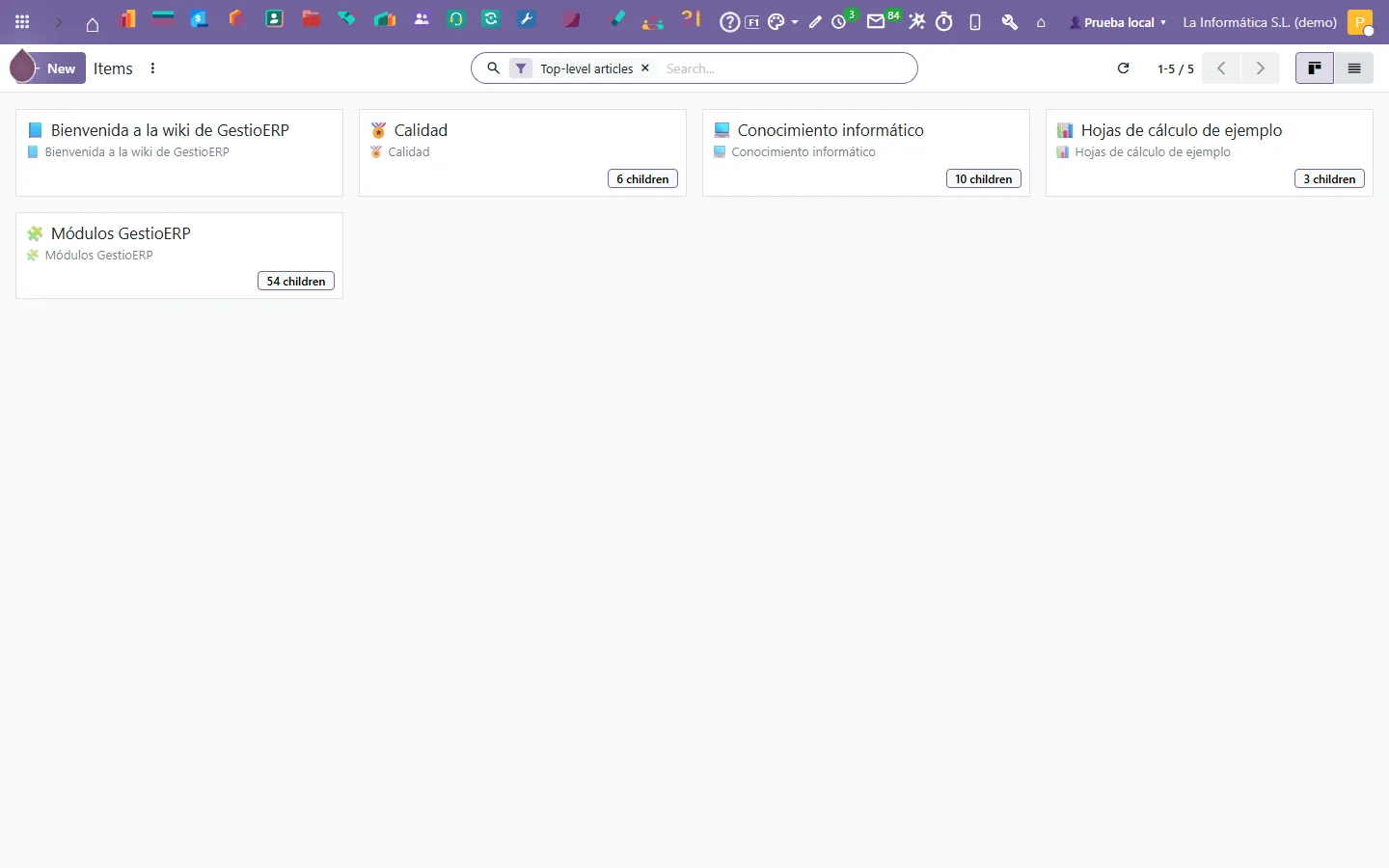
1. What the Wiki is
The company knowledge base: manuals, procedures, quality, technical tips and templates, arranged in a tree of products (each product can have children). It is in the «Home › Wiki» menu. The whole team consults and completes it; each product says who can read or edit it.
How it is done
- Open «Home › Wiki › Products».
- Press «New», enter a title and write the content; use «/» in the editor to insert headings, lists, tables or images.
- Hang it under another with «Artículo padre» or create children with «Nuevo artículo hijo».
2. Products and tree
«Products» shows the top-level ones; «All products» shows all of them (except templates and trash). View them as cards, as a list or as a record.

▶ In motion: products and tree, point by point.
- 1The search box looks in the title and also in the content of the articles.
- 2«New» creates a product; with its parent chosen it hangs it from the tree.
- 3Filters: your favorites, only first-level ones (root), those you created, private ones and templates; you can group by parent or by access.
- 4As cards: icon (an emoji), title, full path within the tree, labels and number of children.
- 5In the list view, the path («Quality / Quality policy») shows where each item hangs; they are reordered by dragging the handle.
3. A product record
Where you write. Buttons on top, then the title, the location and access details, the rich content and the tabs.

▶ In motion: a product record, point by point.
- 1«New child product» creates a new one hanging from this one; «Favorite» adds it to (or removes it from) your favorites; «Use template» (only on templates) copies the content to a new product; «To trash» archives the product and all its children, and asks for confirmation.
- 2The buttons in the box: «Children» opens the list of child products and «Parent product» goes up one level.
- 3The icon (an emoji shown in front of the title) and the title of the product.
- 4The parent product (a root if you leave it empty) and the labels. A product cannot hang from itself or from one of its children.
- 5Access, whether it is a template and the company (if you fill it in, only that company uses it).
- 6The content: rich text editor; type «/» to insert headings, lists, tables or images.
- 7The «Children» tab lists those that hang from this one and can be reordered; «Share» only appears if access is «Only whom I choose».
- 8Below is the history: changes of title, parent and access, comments and activities.
4. Access control per product
Each product has its «Access» field with three options. A child product inherits its parent's access when created, and if you change a parent's access its children follow it.

▶ In motion: access control per product, point by point.
- 1«Everyone can read and edit»: any internal user sees it and changes it.
- 2«Everyone can read»: everyone sees it, only its creator changes it (and whoever is in «Can edit»).
- 3«Only who I choose» (private): visible to its creator and the people you add.
- 4In «Share» you choose the people: «Can edit» and «Can read». When you create a private article with no parent, you become the editor.
How it is done
- Open the product and change «Access».
- If it is private, go to the «Share» tab and add who can read or edit.
- Remember that its children change access along with it.
5. Favorites and labels
«Favorites» gathers the products you have marked with the «Favorite» button (they are yours: each user has their own). Labels, with color, classify the products and are managed in «Wiki › Labels».
6. Templates
A template is a product marked as «Is a template»: it does not appear in «Products» but in «Templates». When you open it, the «Use template» button creates a new product with its title, icon, content and labels, and opens it for you to adapt. The original template does not change.
How it is done
- Open «Wiki › Templates».
- Choose the template and press «Use template».
- Edit the new product and hang it where it belongs.
7. Trash
The «A la papelera» button does not delete: it archives the product and everything hanging from it. From «Wiki › Papelera» they are recovered or deleted for good. These two actions (actions menu of the list) need the «Restaurar y vaciar la papelera» permission».
How it is done
- Open «Wiki › Trash» and tick the products.
- Actions › «Restore» brings them back with their children (if their parent is still in the trash, they end up at the first level).
- Actions › «Delete forever» removes them with their children and cannot be undone.
8. Example products
On installation, some example products are loaded that serve as a model and as a manual. The «Wiki › Load examples» menu loads or completes them again whenever you want, without duplicating anything or overwriting what you have changed.
How it is done
- «Welcome to the GestioERP wiki»: what it is and how it is used.
- «GestioERP modules»: one product for each installed GERP module, with what it does, how it is opened, what it depends on and its permission key.
- «Quality»: policy, control procedure, checklist, non-conformities, internal audit and indicators.
- «Conocimiento informático»: diagnosis of faults, networks, Windows, Linux and servers, backups and security, for the technical team.
- «Sample spreadsheets»: services quote, quality inspection by lots and monthly sales plan, as templates, each with its Excel file with formulas attached.
9. Permissions
In Internal users, section «Wiki (knowledge)»: viewing the wiki gives the menu; the buttons «Create and edit articles» and «Restore and empty the trash» complete the section. On install, whoever already had «Sales» receives view and edit. What really limits who reads or changes each article is its «Access» field; restoring and emptying the trash requires its own permission.
Frequently asked questions
How do I create a wiki article?
«Home › Wiki › Articles» › «New»: type a title, pick the «Parent article» if it hangs from another and write the content (type «/» to insert headings, lists, tables or images).
How do I hang an article under another?
In the article form, «Parent article» field, or from the parent with «New child article». Children are reordered by dragging the handle in the «Children» tab. An article cannot hang from itself or from one of its children.
How do I make an article private?
In the article, «Access» field: «Everyone can read and edit», «Everyone can read» or «Only people I choose». In the last case the «Share» tab lets you add who can read and who can edit. Children follow the parent's access.
How do I mark an article as a favourite?
In the article form, «Favourite» button (and «Remove from favourites»). Yours are in «Wiki › Favourites»; every user has their own.
How do I create a template?
Tick «Is a template» in the article: it moves to «Wiki › Templates». To use it, open it and press «Use template»: it creates a new article with its title, icon, content and tags and opens it for you to adapt.
How do I delete an article?
«To trash» (in the form) archives the article with all its children. In «Wiki › Trash» select them and, under Actions, «Restore» brings them back and «Delete forever» removes them for good. Both need the «Restore and empty the trash» permission.
How do I search the wiki?
In the «Wiki › Articles» search box type a word: it searches titles and content. You can also filter by tag, favourites, private or created by you, and group by parent or access.
How do I tag articles?
Tags are created in «Wiki › Tags» (name and colour, in an editable list) and assigned in the article's «Tags» field. A name can't be repeated.
Which example articles does the wiki include?
Welcome, «GestioERP modules» (one per installed module), «Quality» (policy, procedures, non-conformities, audit, indicators), «IT knowledge» (faults, networks, Windows, Linux, backups, security) and «Example spreadsheets». «Wiki › Load examples» completes them without duplicates.
Where are the wiki's example spreadsheets?
The «Example spreadsheets» article holds three templates: services quote, batch quality inspection and monthly sales plan. Each shows its table and has an .xlsx with the formulas attached to download. Use them with «Use template».
Who can see the Wiki menu?
In Internal users, «Wiki (knowledge)» section: the main permission gives the menu and «Restore and empty the trash» allows recovering and deleting for good. On install, anyone with «Sales» got view and edit. Who reads or changes each article is decided by its «Access» field.
Is an article's history kept?
Yes: below each article is the history (chatter) with title, parent and access changes, comments and activities. In the list, «Edited by» and «Last edit» show who touched it and when.
Knowledge base as a tree of articles with a rich-text editor: favourites, templates, access per article (everyone, read-only or private), labels, trash with restore, history and comments, and example articles (modules, quality, spreadsheets and IT).
There are no comments for now.
to be the first to leave a comment.